Desktop UI
Every Reley project opens in its own window. The shell stays the same: left sidebar for project assets, center pane for the active panel, right rail for shortcuts and the inspector. Everything below talks to the same dispatcher the CLI does - no GUI-only state.
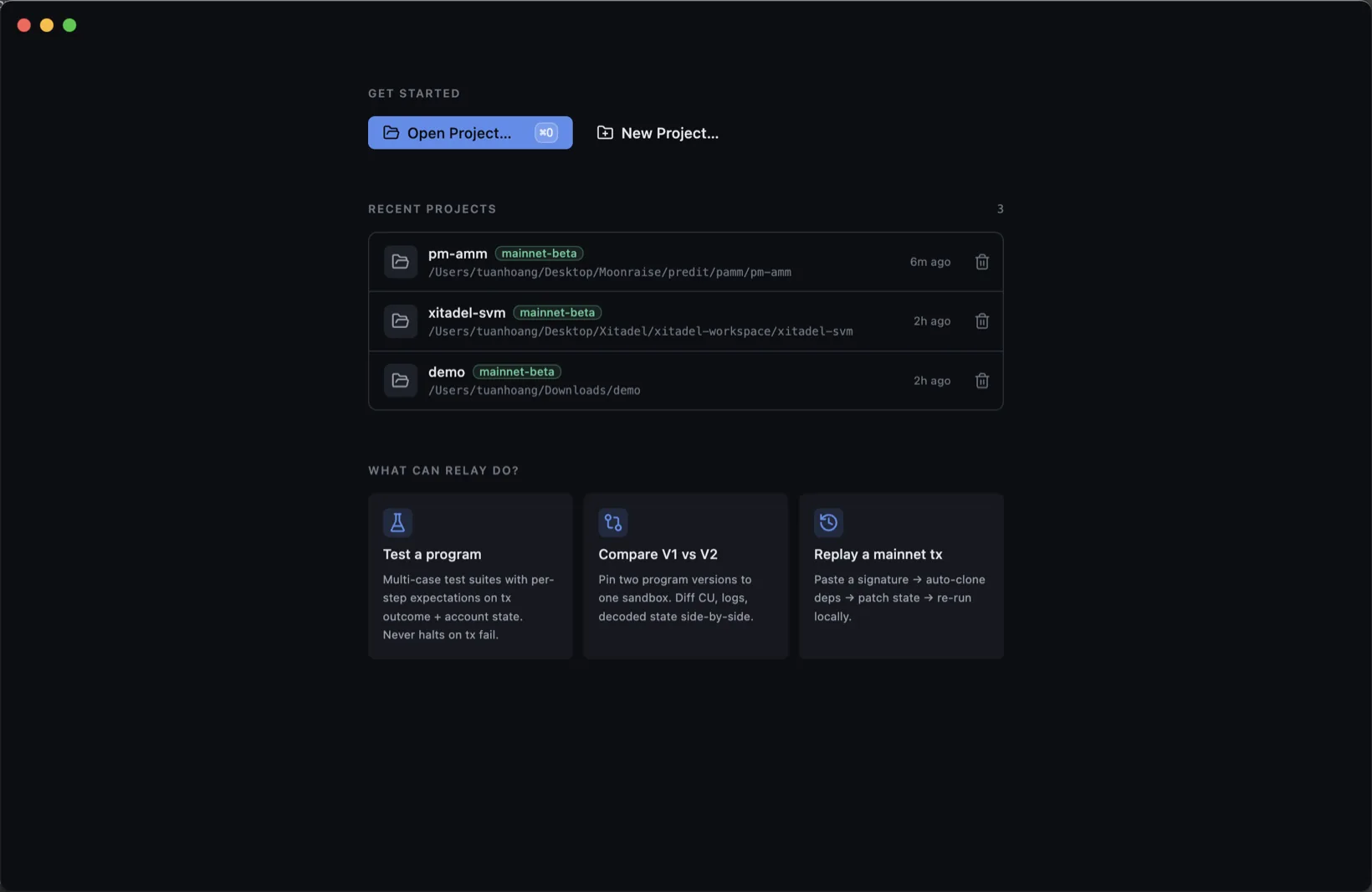
Welcome
Launching Reley drops you on the Welcome screen. Open or create a project, pick a recent one, or jump straight into a guided tour from the use-case cards.
Project shell
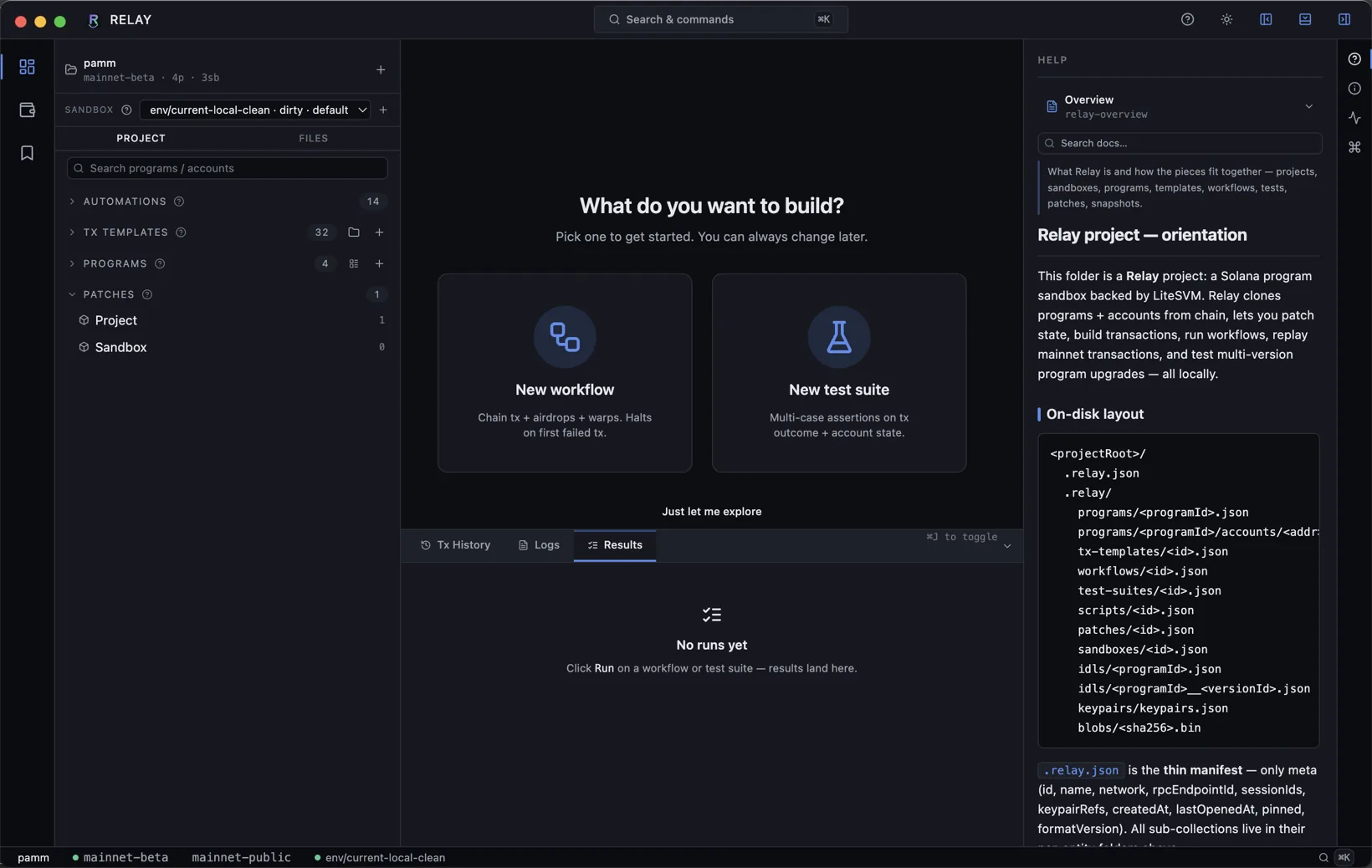
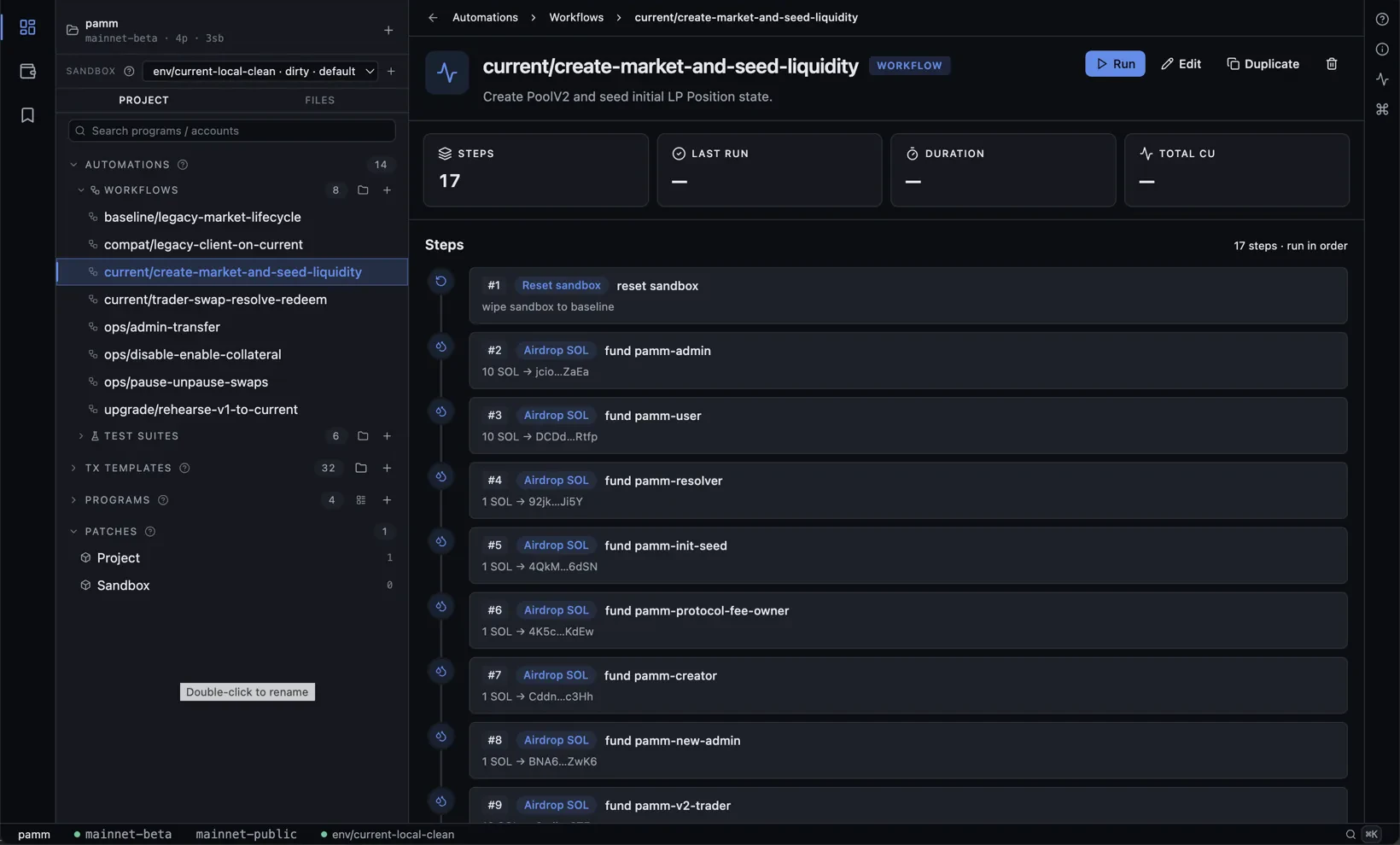
Inside a project: the sidebar lists Automations (workflows + test suites), Tx Templates, Programs, and Patches. The center pane swaps between Tx Builder, Workflow editor, Patch editor, Inspector, and so on. A goal picker prompts you to start a workflow or test suite - dismiss with Just let me explore.

Help panel
The right rail's ? icon opens the orientation help - on-disk layout, anatomy of a project, where each piece lives. Toggle off with the same icon or Esc.
Tx Builder
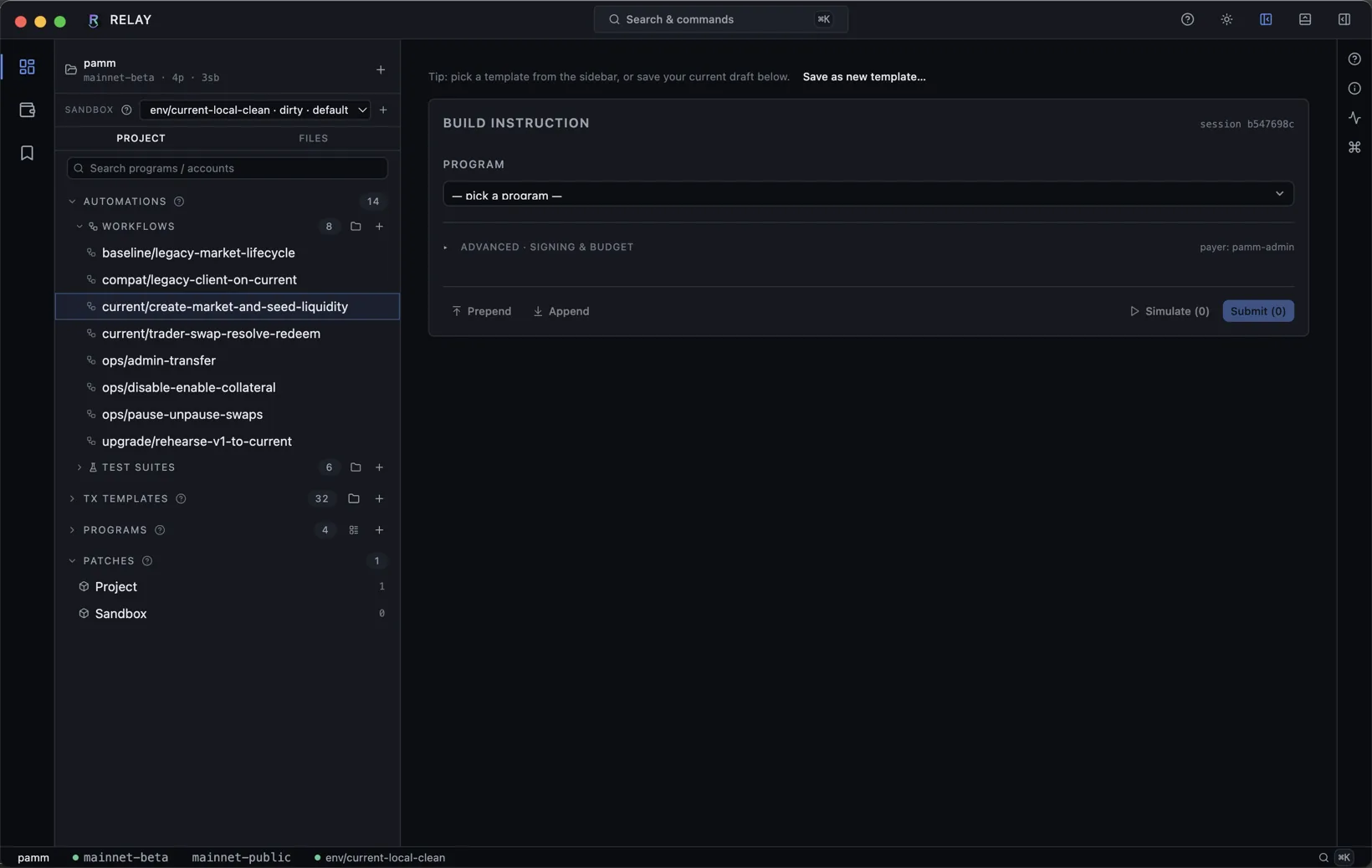
Build an instruction by picking a program, filling the IDL-derived argument form, attaching accounts (with signer/writable flags), and choosing a payer. Prepend / Append stacks more instructions into the same tx. Simulate runs without commit; Submit lands the tx in the active session.
Save as new template top-right.Workflows
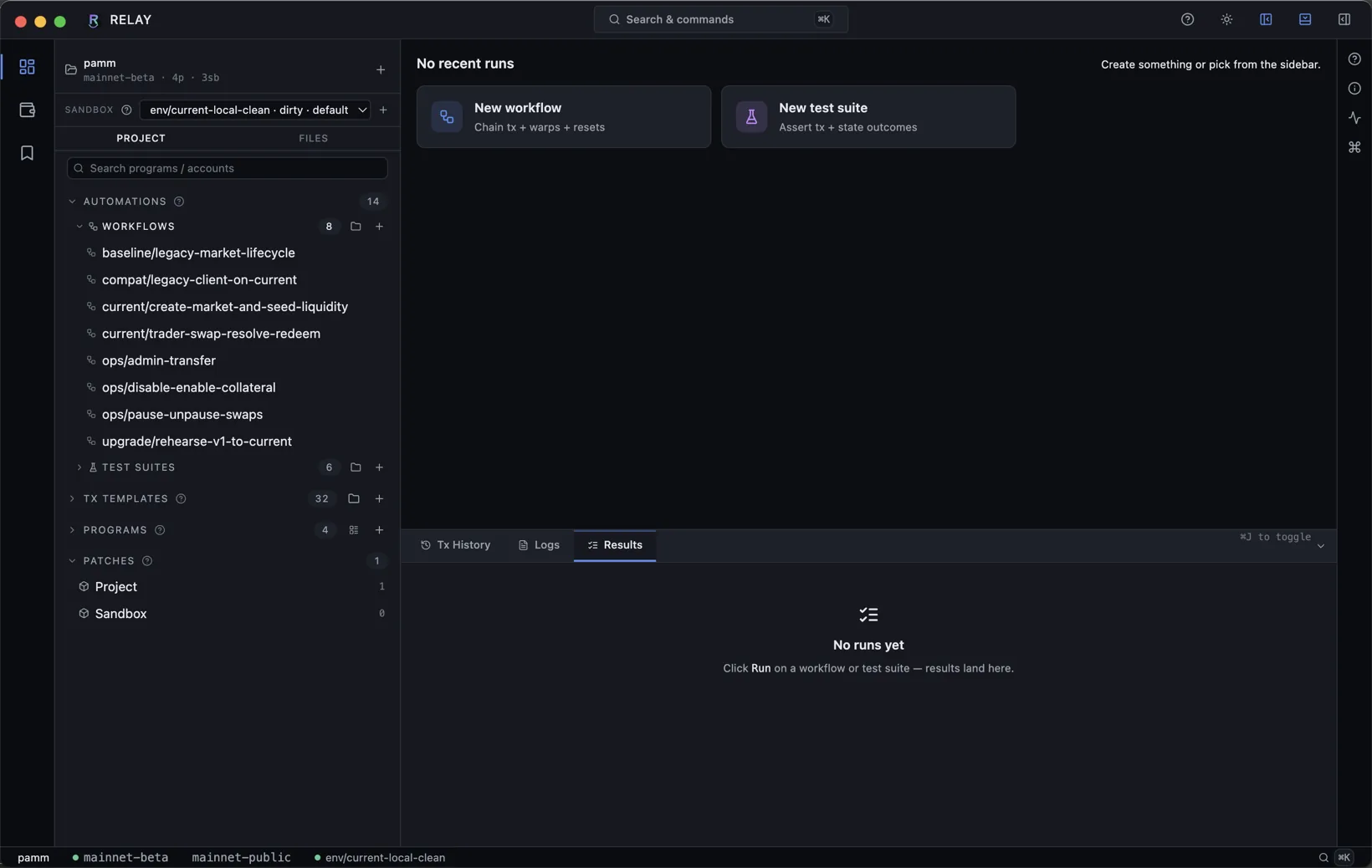
A workflow chains steps that run in order against the active session: airdrop, warp slot/time, expire blockhash, reset sandbox, build & send tx, run a script. Open a workflow to see its step list, run-order notes, total CU, last run, and duration.
Command palette
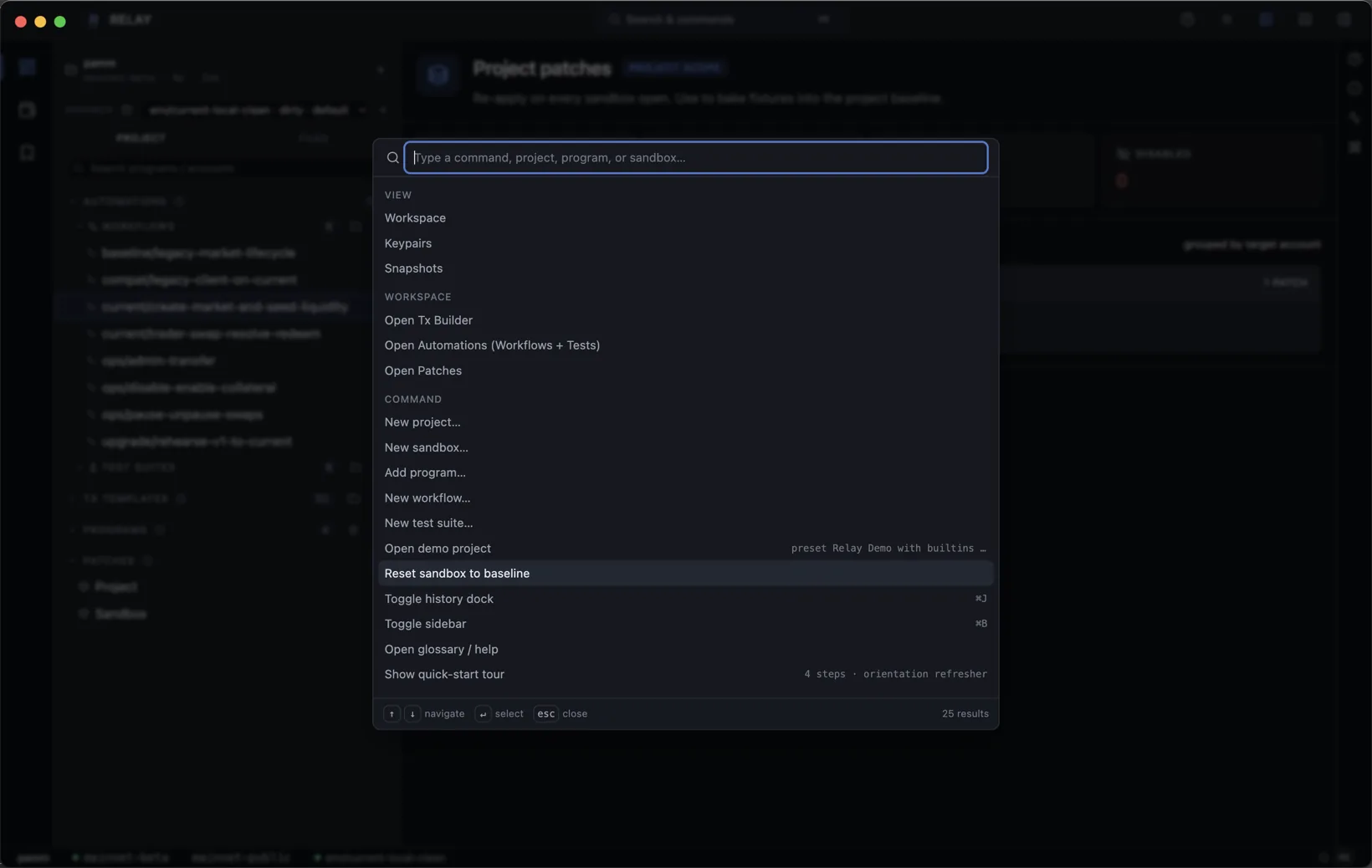
⌘K opens the command palette - every navigation target, workspace command, and project action in one fuzzy-search list. View section jumps to Workspace / Keypairs / Snapshots; Workspace section switches the center pane; Command section creates new things or toggles UI chrome.
Status bar
Bottom strip shows the active project, network, RPC endpoint, and the selected session. Click the session pill to switch sessions without leaving the current panel.
Keyboard shortcuts
A few that matter:
| ⌘K | Command palette |
| ⌘O | Open project |
| ⌘J | Toggle history dock |
| ⌘0 | Toggle sidebar |
| Esc | Dismiss palette / help / modal |